


If you have ever opened the same image file in Lightroom and Photoshop and wondered why it suddenly feels different when you start editing, you are not imagining things.
The tools may share a name and even share technology, but they do not work on the same kind of image data. This difference explains why Lightroom feels forgiving, why Photoshop feels precise, and why certain edits feel easy in one program and risky in the other.
This article explains, in plain language, what Lightroom, Adobe Camera Raw (ACR), and Photoshop actually do with your RAW image data. You do not need an engineering background to understand this. You only need to know how you yourself edit photographs and what you expect from them.
By the end, you will understand why it matters what order you use the two programs, why RAW editors feel flexible, and why Photoshop should usually come later in your workflow.
- The Shared Starting Point: Adobe Camera Raw
- What RAW Sensor Data Really Is
- What Lightroom and ACR Actually Edit
- Why Lightroom Feels Forgiving
- What Happens When You Click Open in Photoshop
- What Photoshop Actually Edits
- Bit Depth and Why It Still Matters
- The Strengths of Lightroom and ACR
- The Strengths of Photoshop
- A Practical Workflow for Nature Photographers
- Why This Understanding Changes Everything
- This Article is Part of a Series on RAW Files
The Shared Starting Point: Adobe Camera Raw
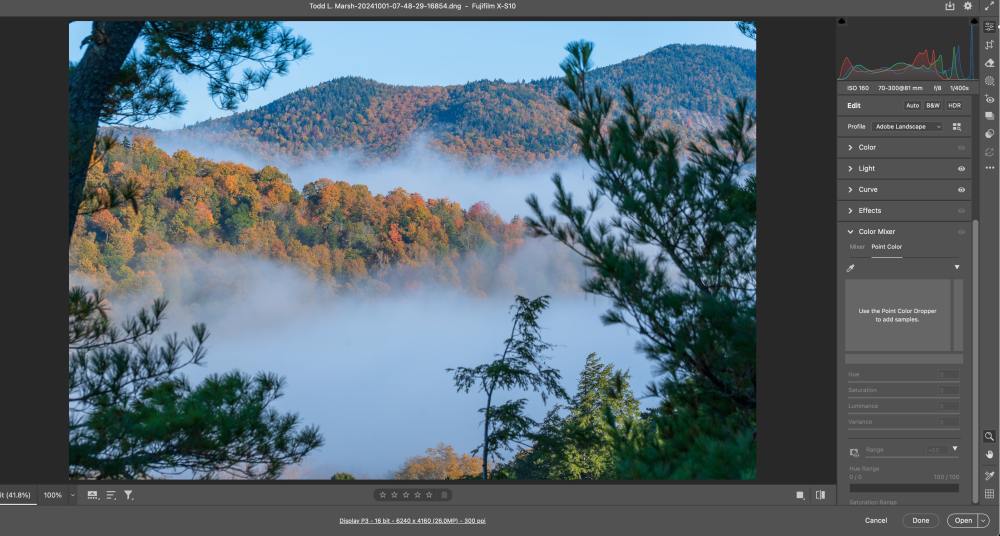
Lightroom and Photoshop both rely on the Adobe Camera Raw processing engine. ACR reads your RAW file and turns sensor measurements into a visible image. When you view a RAW file in Lightroom’s Develop module or open it directly in ACR, you are looking at the same underlying interpretation.
At this stage, the image has not become a traditional photograph yet. It is still rooted in sensor data. ACR/LR does not alter the sensor data; it adds or, more appropriately, links a file of all changes and steps to the RAW data file.
Remember that RAW camera sensor data CAN NOT be viewed. Here is an article that explains why there is no such thing as a RAW image.
In some ways, this is good; you can always go back to any step in your process and change it.
It can be bad if you like the original processing, but later, Adobe changes the way the RAW engine reads the sensor data, as the linked file will add the same editing changes you made, thus changing the way the finished image looks without you even knowing.
What RAW Sensor Data Really Is
A RAW file is not a picture. It is a record of light measurements captured by the camera sensor.
Each photosite measures how much light hits it, filtered through either red, green, or blue. There is no full-color image at this stage. There is no contrast, no sharpening, and no finished color.
The data is linear. If one value is twice as large as another, it truly represents twice as much light. This linear nature preserves dynamic range and allows highlight recovery, but it does not look good on a screen by itself.
RAW data is scene‑referred. It describes the light in the real scene, not how that scene should appear on a display. The data needs to go through a Demosaicing process first.
What Lightroom and ACR Actually Edit
When you edit in Lightroom or ACR, you are working directly with this linear sensor data. Your adjustments do not change pixels. They change instructions for how the data should be interpreted.
When you move the Exposure slider, you are scaling light values before the image is rendered. This behaves much like adjusting exposure at capture. Highlights compress smoothly because the software is still working with unclipped data.
White balance is also handled at this level. Instead of shifting colors after the fact, the software weights color channels before the final color is calculated. This is why white balance changes in Lightroom feel clean and natural, even when pushed far.
All of these adjustments are parametric. Nothing is baked in. Every preview you see is rebuilt from the RAW data each time you move a slider.
What Parametric Data Means in Lightroom
Parametric data in Lightroom describes edits as instructions, not permanent changes to image pixels.
Each slider move records a value that tells Lightroom how to display the photo later.
What Happens When You Edit
Lightroom never rewrites your original RAW file during normal editing work.
Instead, it saves exposure, color, and tone choices as numbers tied to the image.
Examples of Parametric Edits
Exposure, contrast, highlights, and shadows are stored as simple numeric values.
White balance uses temperature and tint numbers instead of changing color pixels.
Tone curves store shape points, not a new version of the image.
Masks store position, size, and strength values, not painted pixels.
Where This Data is Stored
Parametric data lives inside the Lightroom catalog or an XMP sidecar file.
DNG files can store this data inside the file without altering the sensor data.
Why This Matters
You can reset any edit without harming the original capture at any time, and edits take almost no disk space because they are text, not images.
Parametric Editing Versus Photoshop
Lightroom applies math to display pixels during viewing or export, while Photoshop changes pixel values unless you use adjustment layers carefully.
Once pixels change, you cannot fully return to the original data. However, you can still make changes to the adjustment layer or even delete the adjustment layer, leaving the original file.
How Does this Differ from Photoshop
In Lightroom, when you move a slider, the attached sidecar file records the value, and LR always reads the sidecar file before presenting the change on the screen.
Photoshop changes the value of the pixel outright. However, if you are using layers properly, you can always adjust the value by going to the layer and changing it or adjusting the opacity or fill of the layer. In essence, the layer stack is just like Lightroom’s history panel.
- Lightroom: “Increase contrast by 15% using a curve formula and recording the value in the sidecar file.”
- Photoshop: “Change these actual pixel values based on the settings in the Photoshop layer.”
Once you rasterize or bake something into pixels, you’ve crossed the line out of parametric land.
*Important Note
Even though Photoshop “bakes” edits into the pixels, Photoshop works in layers, and you can delete or modify each layer at any time. So you don’t necessarily change the original data in the file; you are adding layers to it, and the original file never changes (unless you are using Photoshop wrong).
A Photography Analogy for Parametric Editing
Think of parametric data like a recipe, not the meal.
- The RAW file = ingredients
- Parametric data = the recipe card
- Exported JPEG = the finished dish
Change the recipe, Lightroom re-cooks the meal.
Why Lightroom Feels Forgiving
Because Lightroom works before the image becomes display‑ready, edits feel smooth and elastic. Shadows lift without breaking apart. Highlights roll off gently. Color relationships stay intact.
This is not because Lightroom is hiding detail. It is because it is still shaping light, not stretching pixels.
For landscape and nature photography, this matters deeply. Scenes with bright skies, dark forests, and subtle color transitions benefit from scene‑referred editing.
What Happens When You Click Open in Photoshop
The moment you send an image from ACR to Photoshop, the RAW stage ends. The image is rendered into full RGB pixels inside a defined color space such as ProPhoto RGB, Adobe RGB, or sRGB.
At this point, gamma encoding has been applied. Tone curves exist. Color has been finalized. The image now behaves the way screens expect images to behave.
Photoshop no longer works with sensor data. It works with pixel values.
Get an email when new articles are published
What Photoshop Actually Edits
Photoshop edits rendered raster data. Each pixel already has red, green, and blue values assigned. Tools operate on brightness and color as they appear on screen.
This allows for extreme precision. You can paint, clone, blend, mask, and composite with full control. Photoshop excels at tasks that require exact placement and fine detail.
However, this precision comes with limits. Large exposure changes stretch pixel values rather than reshaping light. Highlights clip faster. Shadows reveal noise sooner.
In Photoshop, you don’t swing sliders willy-nilly back and forth to narrow down the placement for your edit. The movements are more thoughtful, preconceived, and precise.
Bit Depth and Why It Still Matters
Photoshop commonly works in 16‑bit or 32‑bit mode. This provides strong headroom for editing, but it is not the same as editing RAW sensor data.
Sixteen‑bit rendered data is robust, but it cannot recreate information that was already compressed during RAW conversion. This is why heavy tonal moves belong earlier in the workflow.
Why the Same Sliders Feel Different
Exposure, curves, and contrast behave differently between Lightroom and Photoshop because they operate on different kinds of data.
In Lightroom, curves reshape light distribution before gamma encoding. In Photoshop, curves reshape already‑encoded brightness values. Small changes in Photoshop have a larger visual impact.
Neither approach is wrong. They serve different purposes.
The Strengths of Lightroom and ACR
Lightroom excels at:
- Global tone and exposure
- Color balance and realism
- Highlight and shadow recovery
- Consistency across image sets
It is ideal for shaping the overall look of a photograph and staying close to how the scene felt in person.
I will provide my editing workflow (not a fan of that word, but can’t come up with a better one), which I call the Base Tone Method.
The Strengths of Photoshop
Photoshop excels at:
- Local adjustments
- Pixel‑level retouching
- Focus stacking and blending
- Output preparation
It is best used once the image already feels right.
A Practical Workflow for Nature Photographers
For most landscape and nature photographers, the strongest workflow looks like this:
First, interpret the scene in Lightroom or ACR. Set exposure, color balance, and overall tone while the data is still flexible.
Second, send a 16‑bit ProPhoto RGB file to Photoshop only when needed. Use it for precise local work and refinement.
In my opinion, almost all files should be refined by the features in Photoshop and the actions you create using PS or the TK9 plugin. This is how you develop your own style and look for your final images.
Finally, stop before the image stops feeling natural.
This Article is Part of a Series on RAW Files


Why This Understanding Changes Everything
When you understand what each program edits, frustration tends to fade. Lightroom is no longer perceived as limited, and Photoshop is no longer seen as dangerous. Each tool has a clear role.
You are not choosing between programs. You are choosing when to move from light‑based editing to pixel‑based editing.
Bottom Line
Lightroom and ACR shape light before it becomes an image. Photoshop reshapes pixels after the image already exists.
Understanding this distinction leads to better decisions, cleaner files, and images that stay true to your experience of the scene.